> ## Documentation Index
> Fetch the complete documentation index at: https://private-7c7dfe99-postgresql-tls-support.mintlify.site/llms.txt
> Use this file to discover all available pages before exploring further.

> Omni は、BI、データアプリケーション、埋め込み分析のためのエンタープライズ向けプラットフォームであり、インサイトをリアルタイムで探索・共有できます。

# Omni

export const PartnerBadge = () => {
  return <div className="PartnerBadge">
            <div className="PartnerBadgeIcon">
                <svg width="16" height="16" viewBox="0 0 16 16" fill="none" xmlns="http://www.w3.org/2000/svg">
                    <polyline points="12.5 9.5 10 12 6 11 2.5 8.5" stroke="currentColor" strokeLinecap="round" strokeLinejoin="round" strokeWidth="1" />
                    <polyline points="4.54 4.41 8 3.5 11.46 4.41" stroke="currentColor" strokeLinecap="round" strokeLinejoin="round" strokeWidth="1" />
                    <path d="M2.15,3.78 L0.55,6.95 A0.5,0.5 0,0,0 0.77,7.62 L2.5,8.5 L4.54,4.41 L2.82,3.55 A0.5,0.5 0,0,0 2.15,3.78 Z" stroke="currentColor" strokeLinecap="round" strokeLinejoin="round" strokeWidth="1" />
                    <path d="M13.5,8.5 L15.23,7.62 A0.5,0.5 0,0,0 15.45,6.95 L13.85,3.78 A0.5,0.5 0,0,0 13.18,3.55 L11.46,4.41 Z" stroke="currentColor" strokeLinecap="round" strokeLinejoin="round" strokeWidth="1" />
                    <path d="M11.5,4.5 L9,4.5 L6.15,7.27 A0.5,0.5 0,0,0 6.24,8.05 C7.33,8.74 8.81,8.72 10,7.5 L12.5,9.5 L13.5,8.5" stroke="currentColor" strokeLinecap="round" strokeLinejoin="round" strokeWidth="1" />
                    <polyline points="7.75 13.5 5.15 12.85 3.5 11.67" stroke="currentColor" strokeLinecap="round" strokeLinejoin="round" strokeWidth="1" />
                </svg>
            </div>
            パートナーインテグレーション
        </div>;
};

export const Image = ({img, alt, size = "lg"}) => {
  const normalizedSize = ["sm", "md", "lg"].includes(size) ? size : "lg";
  return <div className={`ch-image-${normalizedSize}`}>
      <Frame>
        <img src={img} alt={alt} />
      </Frame>
    </div>;
};

<PartnerBadge />

Omniは、公式のClickHouseデータソースを使用して、ClickHouse Cloudまたはオンプレミス環境のデプロイメントに接続できます。

<Steps>
  <Step title="接続情報を収集する" id="1-gather-your-connection-details">
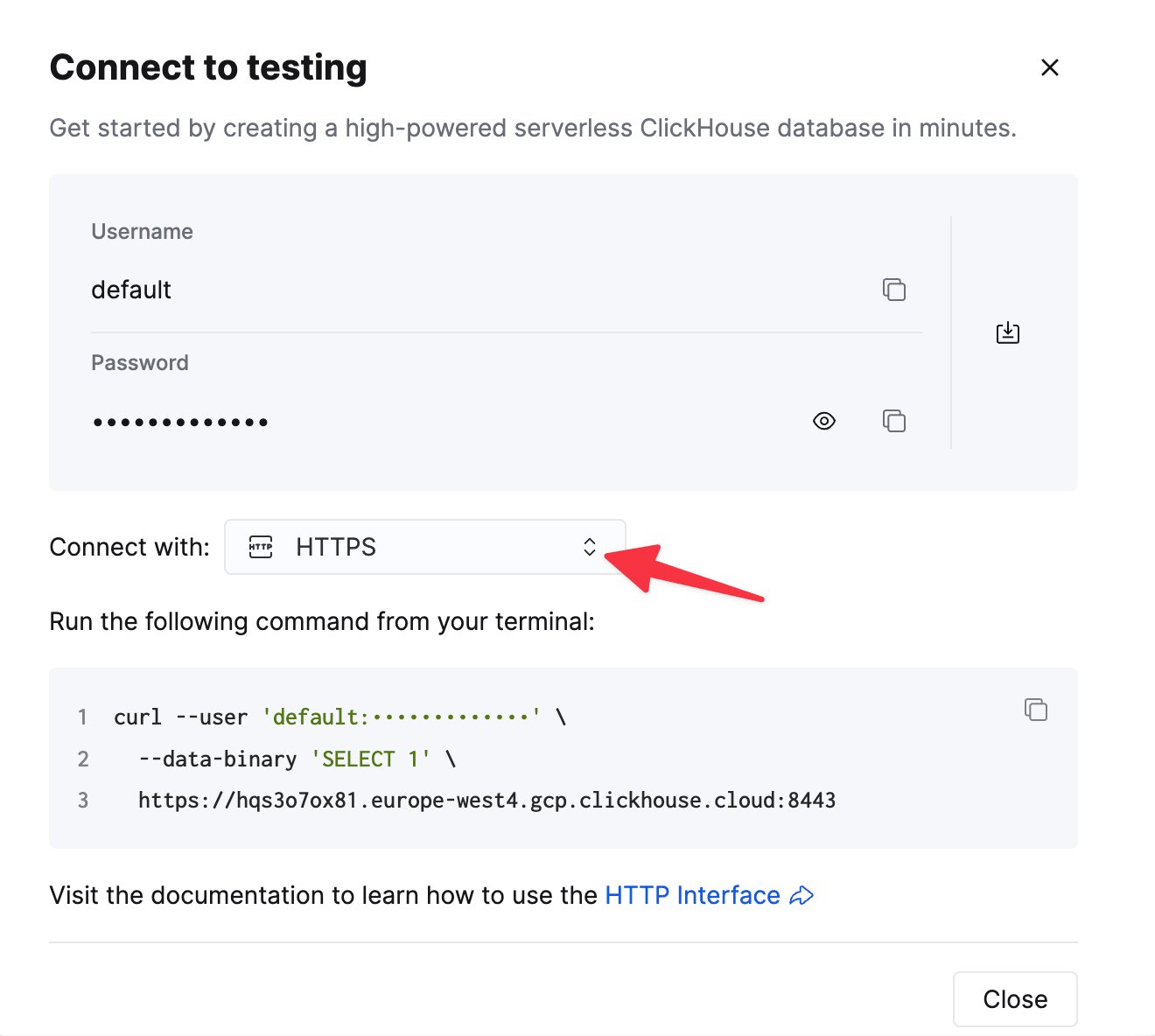
    HTTP(S) で ClickHouse に接続するには、次の情報が必要です。

    | Parameter(s)              | Description                                               |
    | ------------------------- | --------------------------------------------------------- |
    | `HOST` and `PORT`         | 通常、TLS を使用する場合のポートは 8443、TLS を使用しない場合は 8123 です。           |
    | `DATABASE NAME`           | デフォルトでは `default` という名前のデータベースがあります。接続先のデータベース名を使用してください。 |
    | `USERNAME` and `PASSWORD` | デフォルトのユーザー名は `default` です。用途に応じたユーザー名を使用してください。           |

    ClickHouse Cloud サービスの詳細は、ClickHouse Cloud コンソールで確認できます。
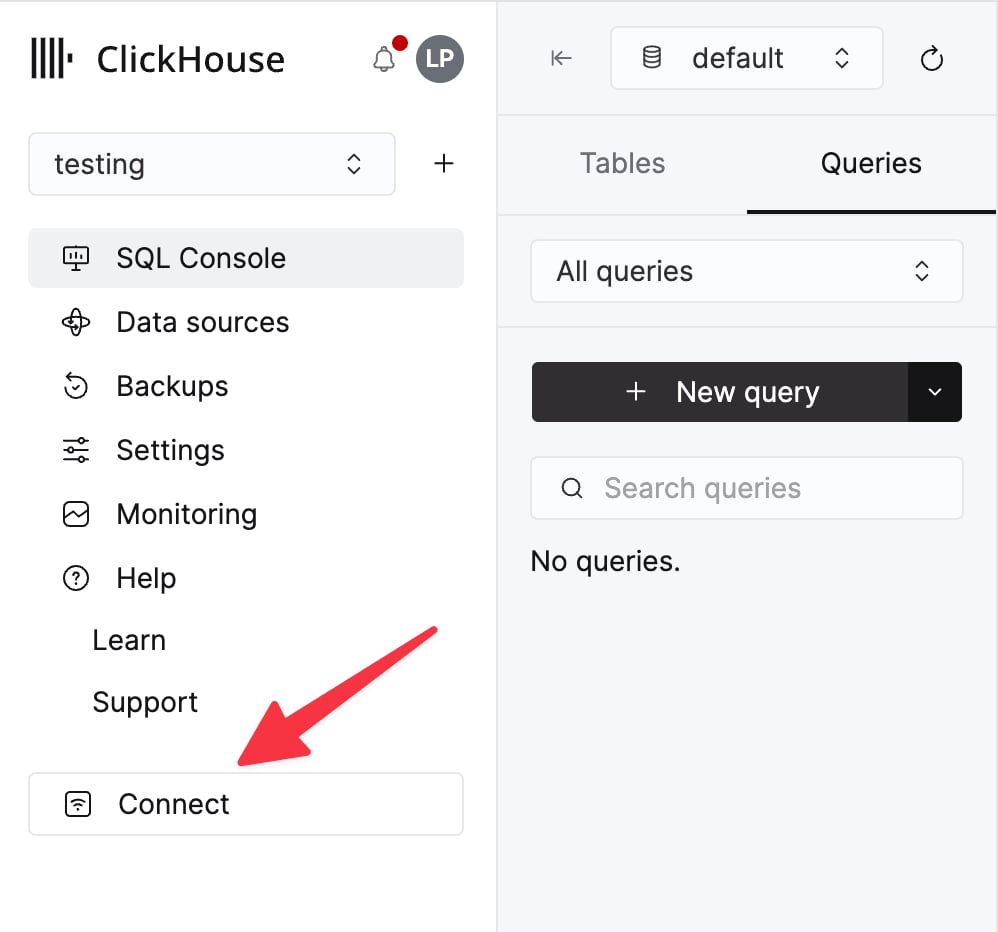
    サービスを選択し、**Connect** をクリックします。

    <div className="ch-image-md">
      <Frame>
        <img src="https://mintcdn.com/private-7c7dfe99-postgresql-tls-support/cTIaEq6k6KYDgBI1/images/_snippets/cloud-connect-button.webp?fit=max&auto=format&n=cTIaEq6k6KYDgBI1&q=85&s=dd441fc2272e292760011d48e81d43d4" alt="ClickHouse Cloud サービスの接続ボタン" width="998" height="932" data-path="images/_snippets/cloud-connect-button.webp" />
      </Frame>
    </div>

    **HTTPS** を選択します。接続情報は `curl` コマンドの例として表示されます。

    <div className="ch-image-md">
      <Frame>
        <img src="https://mintcdn.com/private-7c7dfe99-postgresql-tls-support/cTIaEq6k6KYDgBI1/images/_snippets/connection-details-https.webp?fit=max&auto=format&n=cTIaEq6k6KYDgBI1&q=85&s=878b1fe94ea520377426f69503e38994" alt="ClickHouse Cloud HTTPS 接続情報" width="1320" height="1184" data-path="images/_snippets/connection-details-https.webp" />
      </Frame>
    </div>

    セルフマネージド ClickHouse を使用している場合、接続情報は ClickHouse 管理者によって設定されます。
  </Step>

  <Step title="ClickHouse データソースを作成する" id="2-create-a-clickhouse-data-source">
    Admin -> Connections に移動し、右上の "Add Connection" ボタンをクリックします。

    <Image size="lg" img="https://mintcdn.com/private-7c7dfe99-postgresql-tls-support/sK1EDai1DhVYGATV/images/integrations/data-visualization/omni_01.webp?fit=max&auto=format&n=sK1EDai1DhVYGATV&q=85&s=7d7bcf33d87eb42c9e4dbfaea9b1c416" alt="Connections セクションで Add Connection ボタンが表示されている Omni の管理インターフェイス" border width="3019" height="1635" data-path="images/integrations/data-visualization/omni_01.webp" />

    <br />

    `ClickHouse` を選択し、フォームに認証情報を入力します。

    <Image size="lg" img="https://mintcdn.com/private-7c7dfe99-postgresql-tls-support/sK1EDai1DhVYGATV/images/integrations/data-visualization/omni_02.webp?fit=max&auto=format&n=sK1EDai1DhVYGATV&q=85&s=c0e21c9c954d49519a7198caa8410660" alt="認証情報入力用フォームのフィールドが表示されている、ClickHouse 用 Omni 接続設定インターフェイス" border width="3008" height="1552" data-path="images/integrations/data-visualization/omni_02.webp" />

    <br />

    これで、Omni から ClickHouse のデータをクエリして可視化できるようになります。
  </Step>
</Steps>