> ## Documentation Index
> Fetch the complete documentation index at: https://private-7c7dfe99-postgresql-tls-support.mintlify.site/llms.txt
> Use this file to discover all available pages before exploring further.
# Migrating between self-managed ClickHouse and ClickHouse Cloud using remoteSecure
> Page describing how to migrate between self-managed ClickHouse and ClickHouse Cloud
export const Image = ({img, alt, size = "lg"}) => {
const normalizedSize = ["sm", "md", "lg"].includes(size) ? size : "lg";
return ;
};
This guide shows you how to migrate from a self-managed ClickHouse server to ClickHouse Cloud, and also how to migrate between ClickHouse Cloud services.
The [`remoteSecure`](/reference/functions/table-functions/remote) function is used in `SELECT` and `INSERT` queries to allow access to remote ClickHouse servers, which makes migrating tables as simple as writing an `INSERT INTO` query with an embedded `SELECT`.
Migrating from self-managed ClickHouse to ClickHouse Cloud
Regardless of if your source table is sharded and/or replicated, on ClickHouse Cloud you only need to create a destination table (you can leave out the Engine parameter for this table, `SharedMergeTree` will be selected automatically as the table engine),
and ClickHouse Cloud will automatically take care of vertical and horizontal scaling.
There is no need from your side to think about how to replicate and shard the table.
In this example, the self-managed ClickHouse server is the *source* and the ClickHouse Cloud service is the *destination*.
Overview
The process is:
1. Add a read-only user to the source service
2. Duplicate the source table structure on the destination service
3. Pull the data from source to destination, or push the data from the source, depending on the network availability of the source
4. Remove the source server from the IP Access List on the destination (if applicable)
5. Remove the read-only user from the source service
Migration of tables from one system to another:
This example migrates one table from a self-managed ClickHouse server to ClickHouse Cloud.
**Compatibility**
If you're noticing differences in behavior between your self-hosted ClickHouse deployment and your ClickHouse Cloud service,
it may be related to the [compatibility setting](/reference/settings/session-settings#compatibility).
In Cloud, compatibility is set when a service is created and doesn't change at the service level to ensure that clients get consistent behavior even as the service upgrades.
If you wish to change compatibility, you may request to do so via [support](https://clickhouse.com/support/program).
On the source ClickHouse system (the system that currently hosts the data)
* Add a read only user that can read the source table (`db.table` in this example)
```sql theme={null}
CREATE USER exporter
IDENTIFIED WITH SHA256_PASSWORD BY 'password-here'
SETTINGS readonly = 1;
```
```sql theme={null}
GRANT SELECT ON db.table TO exporter;
```
* Copy the table definition
```sql theme={null}
SELECT create_table_query
FROM system.tables
WHERE database = 'db' AND table = 'table'
```
On the destination ClickHouse Cloud system:
* Create the destination database:
```sql theme={null}
CREATE DATABASE db
```
* Using the CREATE TABLE statement from the source, create the destination.
Change the ENGINE to to ReplicatedMergeTree without any parameters when you run the CREATE statement. ClickHouse Cloud always replicates tables and provides the correct parameters. Keep the `ORDER BY`, `PRIMARY KEY`, `PARTITION BY`, `SAMPLE BY`, `TTL`, and `SETTINGS` clauses though.
```sql theme={null}
CREATE TABLE db.table ...
```
* Use the `remoteSecure` function to pull the data from the self-managed source
```sql theme={null}
INSERT INTO db.table SELECT * FROM
remoteSecure('source-hostname', db, table, 'exporter', 'password-here')
```
If the source system isn't available from outside networks then you can push the data rather than pulling it, as the `remoteSecure` function works for both selects and inserts. See the next option.
* Use the `remoteSecure` function to push the data to the ClickHouse Cloud service
**Add the remote system to your ClickHouse Cloud service IP Access List**
In order for the `remoteSecure` function to connect to your ClickHouse Cloud service the IP Address of the remote system will need to be allowed by the IP Access List. Expand **Manage your IP Access List** below this tip for more information.
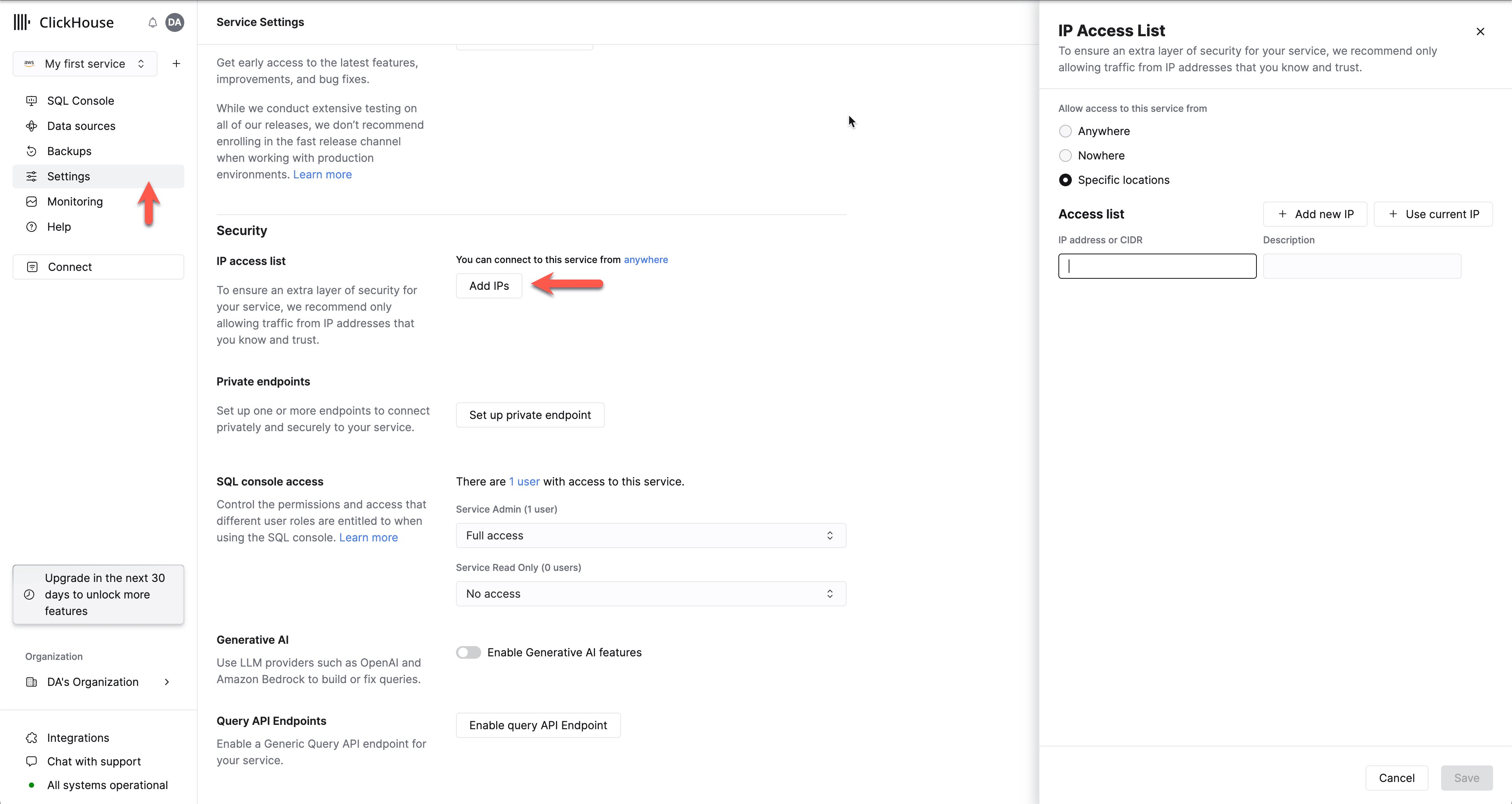
From your ClickHouse Cloud services list choose the service that you will work with and switch to **Settings**. If the IP Access List doesn't contain the IP Address or range of the remote system that needs to connect to your ClickHouse Cloud service, then you can resolve the problem with **Add IPs**:
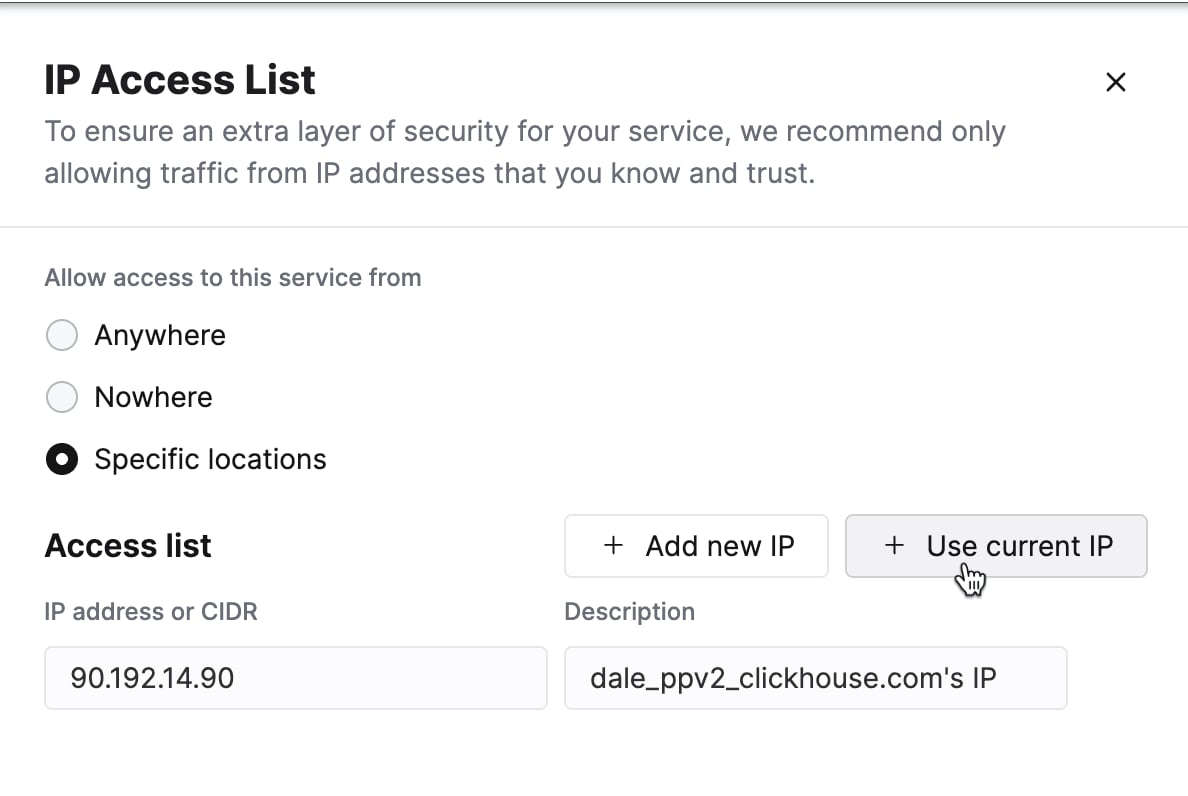
Add the individual IP Address, or the range of addresses that need to connect to your ClickHouse Cloud service. Modify the form as you see fit and then **Save**.
```sql theme={null}
INSERT INTO FUNCTION
remoteSecure('HOSTNAME.clickhouse.cloud:9440', 'db.table',
'default', 'PASS') SELECT * FROM db.table
```
Migrating between ClickHouse Cloud services
Some example uses for migrating data between ClickHouse Cloud services:
* Migrating data from a restored backup
* Copying data from a development service to a staging service (or staging to production)
In this example there are two ClickHouse Cloud services, and they will be referred to as *source* and *destination*. The data will be pulled from the source to the destination. Although you could push if you like, pulling is shown as it uses a read-only user.
There are a few steps in the migration:
1. Identify one ClickHouse Cloud service to be the *source*, and the other as the *destination*
2. Add a read-only user to the source service
3. Duplicate the source table structure on the destination service
4. Temporarily allow IP access to the source service
5. Copy the data from source to destination
6. Re-establish the IP Access List on the destination
7. Remove the read-only user from the source service
Add a read-only user to the source service
* Add a read only user that can read the source table (`db.table` in this example)
```sql theme={null}
CREATE USER exporter
IDENTIFIED WITH SHA256_PASSWORD BY 'password-here'
SETTINGS readonly = 1;
```
```sql theme={null}
GRANT SELECT ON db.table TO exporter;
```
* Copy the table definition
```sql theme={null}
select create_table_query
from system.tables
where database = 'db' and table = 'table'
```
Duplicate the table structure on the destination service
On the destination create the database if it isn't there already:
* Create the destination database:
```sql theme={null}
CREATE DATABASE db
```
* Using the CREATE TABLE statement from the source, create the destination.
On the destination create the table using the output of the `select create_table_query...` from the source:
```sql theme={null}
CREATE TABLE db.table ...
```
Allow remote access to the source service
In order to pull data from the source to the destination the source service must allow connections. Temporarily disable the "IP Access List" functionality on the source service.
If you will continue to use the source ClickHouse Cloud service then export the existing IP Access list to a JSON file before switching to allow access from anywhere; this will allow you to import the access list after the data is migrated.
Modify the allow list and allow access from **Anywhere** temporarily. See the [IP Access List](/products/cloud/guides/security/connectivity/setting-ip-filters) docs for details.
Copy the data from source to destination
* Use the `remoteSecure` function to pull the data from the source ClickHouse Cloud service
Connect to the destination. Run this command on the destination ClickHouse Cloud service:
```sql theme={null}
INSERT INTO db.table SELECT * FROM
remoteSecure('source-hostname', db, table, 'exporter', 'password-here')
```
* Verify the data in the destination service
Re-establish the IP access list on the source
If you exported the access list earlier, then you can re-import it using **Share**, otherwise re-add your entries to the access list.
Remove the read-only `exporter` user
```sql theme={null}
DROP USER exporter
```
* Switch the service IP Access List to limit access